The short answer
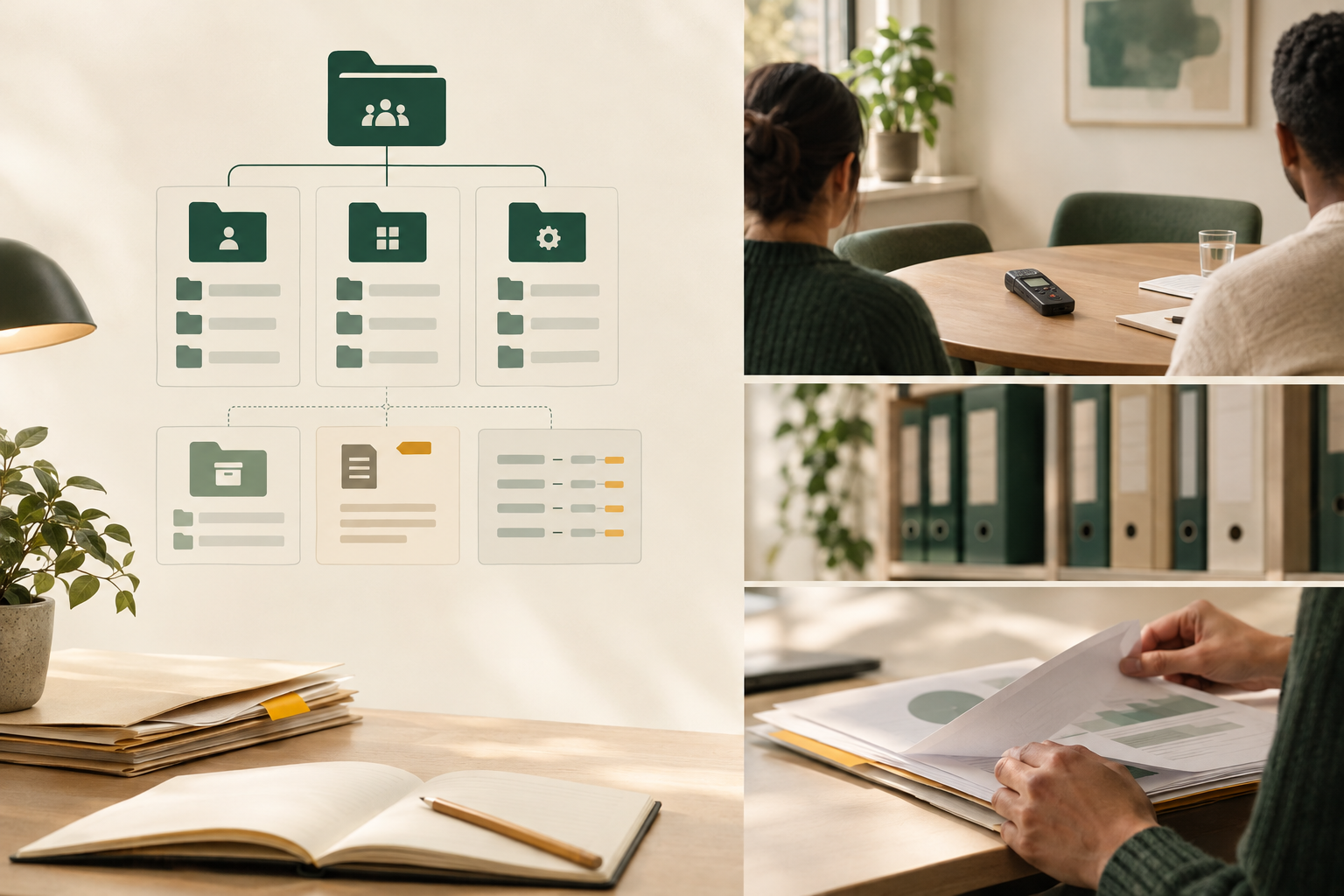
Choose one main logic for your top-level folders: client, project or function. Then create a small set of standard subfolders, adopt a shared file-naming format and name someone responsible for each space. To clean up what you already have, start by taking inventory and sorting before moving or deleting anything.
The right structure is the one your team understands and uses, not the one that looks most complete on a diagram. A home folder that explains where to save files and how to name them also helps people who were not involved in setting up the system.
Should you organize by client, project or function?
Start with the question colleagues most often ask when they need to find a document. If they usually look for “everything related to Client X,” create client folders. If your teams work on distinct engagements, organize by project. If people mainly use documents by department or activity—such as accounting, human resources, sales or operations—a functional structure may feel more natural.
- By client Useful for consulting firms, professional offices and businesses that need to find documents related to a client in one place. Use the same folder template for each client.
- By project A good fit for teams handling temporary engagements with a start and end date, sometimes involving several clients or partners.
- By function Helpful when files mainly support an ongoing organizational activity, regardless of the client or engagement.
- A mixed structure with one dominant logic You can combine approaches at different levels—for example, one folder per client, then one folder per engagement. Avoid creating multiple copies of the same document just to make it appear in different branches.
A common problem arises when top-level folders are organized by task, but colleagues search by client first. Documents for the same client end up scattered across the drive. Rather than rebuilding the whole tree around every possible need, decide which criterion should guide the main structure and note exceptions in a home folder.
What folder structure is a good starting point?
Keep the number of levels small. People should be able to understand a file’s path without opening a long sequence of folders. Records-management guidance emphasizes consistent, descriptive folder names and recommends keeping folder trees from becoming too deep. Treat this as a practical starting point, not a universal rule for every business.
- 00_Read_First Put the home folder, filing rules, approved templates and contact details for the people responsible for the shared space here.
- 01_Clients Create one folder for each active client, using a distinct name or identifier. Use the same template inside each one, such as Administration, Engagements and References.
- 02_Projects Use this branch for projects that do not fit naturally under a client or involve several teams. Clearly identify the project owner and status in the relevant documents.
- 03_Functions Store shared, recurring documents here: procedures, internal communications, human resources or finance materials, depending on your needs and who is authorized to access them.
- 90_Archive Move inactive folders here only after confirming they can be archived and deciding who still needs access.
These folder names are examples. Remove branches that do not fit your work. To prevent uncertainty, explain in the home folder what belongs in each location and what does not. For example: “Working documents for an active engagement go in the client folder, under Engagements. Shared procedures go under Functions.”
How should you name files so they are easy to find?
A good file name tells people what the document is about and distinguishes it from nearby versions. Decide on a fixed order for the useful details, then use it consistently. Records-management and data-management guidance both emphasize descriptive, consistent names that remain understandable even if a file is moved out of its folder.
- Use the same details in the same order For example: YYYY-MM-DD_Client_Project_DocumentType. If the date matters for sorting, put it first; otherwise, do not add it automatically to every file name.
- Choose words the whole team understands Avoid personal abbreviations. If an abbreviation is useful, define it in the home folder.
- Show the document’s status when it helps Use agreed labels such as draft, for_review or approved. Do not accumulate files called “final,” “final2” and “really_final.”
- Keep file names readable and reasonably short Avoid vague titles such as document, notes or final version. Do not put sensitive information in a file name unless it is necessary.
Example: 2026-05-14_Belair_Audit_Meeting-Notes. Putting the year, month and day in that order makes chronological sorting easier. You do not need to repeat words that are already clear from the folder path: in Clients/Belair/Engagements/Audit, you may be able to leave out the client and engagement names, as long as the file is still clear when viewed on its own.
Who should be responsible for folders and rules?
A shared space does not need one gatekeeper who files everything for everyone. It does need visible responsibilities. Name someone responsible for each major branch, someone to maintain the shared rules and a backup who can step in when needed. These people can answer filing questions, spot duplicates and suggest changes.
- Everyone who adds a file Check that it is in the right place, use the agreed name and avoid keeping a parallel copy without a reason.
- The person responsible for a branch Check periodically that the structure remains clear, temporary folders are not piling up and people can follow the instructions.
- The person who manages access Keep the member list up to date, review access when the team changes and consult the IT lead about technical settings.
Access rights depend on the platform and its configuration. In Google Workspace shared drives, files belong to the team rather than the person who added them, and members can generally see the files in that shared space. Some configurations allow access to be restricted for specific folders, but this depends on roles and settings. Check access before storing documents that should not be available to every member.
How do you clean up an overcrowded shared drive?
Do not start by moving hundreds of files at random. Announce the cleanup, agree on a target structure and test it with one small branch. Keep a record of changes, and ask the people who use important documents to confirm their locations before applying the new structure more widely.
- Choose someone to lead the cleanup and someone to consult for each major branch.
- Identify folders with no owner, likely duplicates, poorly named files and spaces that mix different organizing systems. Do not delete anything just because it looks old.
- Review the target structure with the team. Write a short rule explaining where new files belong and who to contact with questions.
- Test the template with one client, project or function. Check that several people can find the same documents without individual help.
- Move files in batches. Keep a record of which folders moved, and check links, access and usage before continuing.
- Handle duplicates, files with no obvious owner and documents with uncertain retention requirements separately. Ask the appropriate person to review them.
- Announce the new structure and set a review date to fix categories that are still causing confusion.
If your team uses Google Drive, its search features can supplement your filing system, including filters such as file type or modification date. Search is a useful shortcut, not a replacement for a clear structure. A well-named file in the right place is still easier for everyone to recognize.
How can you archive files without losing track of them?
An archive separates active work from completed work; it is not a way to quietly get rid of inconvenient files. Agree with the people concerned on when a folder becomes inactive, who may still view it and how it can be found. Add the year or status to the folder name if useful. Avoid creating a catch-all archive where nobody knows what should be kept.
Do not confuse archiving with a retention period. Rules for keeping and deleting records vary by province, state or country, sector and document type. For financial, professional, medical or regulated records, ask your professional association, the relevant authority or a qualified professional for guidance. This article is not legal advice.
- Avoid too many levels A deep folder tree is tedious to navigate and makes filing harder.
- Avoid ambiguous categories Folders called Miscellaneous, To_File or Other can quickly become permanent destinations. If you need one temporarily, assign someone to clear it.
- Avoid rules nobody can follow A long naming system full of mandatory codes is likely to be ignored. Start with the details that are genuinely useful.
- Do not rely on one person If only the person who created a file knows where it is, the system is not clear enough. Ask someone who did not design the folder tree to test it.
How this looks in FolderMind
FolderMind, built by TECHMA, includes a file library and a view of a connected Google Drive where the team chooses which files to import; it is not made or endorsed by Google. Try the demo to see how full-text search and an assistant that cites a passage can help you find information, and check each cited passage in the original file. The demo does not continuously synchronize with Drive in both directions or apply permissions by folder or file. TECHMA can adapt the FolderMind template to your team’s rules and file sources, or manage a customized version; contact us to discuss options, available on a quote.
Terms used on this page
Sources
- What are shared drives? Google Workspace Learning Center
- How file access works in shared drives Google Workspace Learning Center
- Search for files in Google Drive Google Drive Help
- Bulletin 2015-01, Appendix B: Recommended File and Folder Naming Conventions National Archives and Records Administration
- Best Practices for File Naming and Organizing Smithsonian Institution Archives